Monday, February 2, 2015

The Ten Commandments of Computer Use at MMHS

It seems as though some students are having trouble remembering what the computer use rules are at MMHS, so we made a quick ten item summary of our Acceptable Use Policies and posted them below. Please read them and ask questions if you don't understand.
  1. This is only a summary of the rules.  Use the golden rule of computer use. "Is it for educational purposes?" If no, don't do it. Check the school web site for the list of policies related to computer use if you have questions about anything.
  2. Respect others and yourself online. Don't engage in bullying or harassing behaviors. Use school appropriate language. Don’t use anyone else’s laptop, computer, or computer accounts.
  3. Games- Unless specifically permitted for a specific learning objective by the classroom teacher, games are not permitted at school.
  4. Chat and Messaging- Chat and messaging programs are not permitted at school unless you receive a special exemption from the Principal or Technology Coordinator.  Save that for home.
  5. Security- No hacking, tampering, or bypassing computer settings or security.  Keep your passwords to yourself.  Don’t touch anyone else’s laptop or use their accounts.
  6. Music/Headphones-  Unless working on a specific class or project, you are not to be listening to music and/or using headphones at school.  Save that for home.
  7. Illegal Activities-  You are not to use your school computer to illegally copy and/or distribute music, video, or other copyrighted material.
  8. Streaming and File Sharing- You are not to be downloading or watching streaming material that has not instructional purpose for your classes.  Save that for home.
  9. Appropriate Care- Treat your laptop with appropriate care at all times.  Don’t leave it on the floor.  Don’t walk with it out of the case.  Don’t drink around the laptop.  Don’t put heavy items on top of the laptop.  Don’t put the laptop in your book bag.
  10. Educational Purposes-  Use your laptop for educational purposes and you’ll be “golden.”  That’s the primary reason you have it.  Remember that.  Non-educational uses should be saved for home.

Thursday, January 22, 2015

Unwanted ads on your Mac? Here's what to do.

Icon for AdwareMedic
We've seen a big jump in the number of MacBooks with lots of ads when browsing.  These ads can give misleading results, and are certainly annoying.  What can you do? 

Download a removal tool-  Install and run AdwareMedic  (http://www.adwaremedic.com).  This software will scan your machine looking for adware, malware, and other types of software that can slow down your browsing.  Download the program using the link above.  The file AdwareMedic.dmg will be in your Downloads folder.  Double click on the file and drag it into your Applications folder.

You must press Open in order to use the file.
Drag the AdwareMedic to the Applications folder alias.

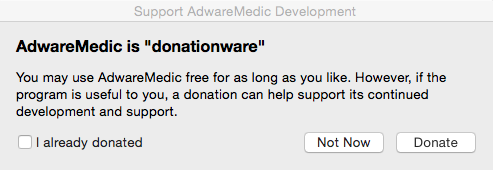
If you would like to donate to support this software, you may do so.  Otherwise click Not Now.

Click the magnifying glass in order to start scanning your computer.  If they find anything, allow it to remove the problems.  Quit when finished.  A restart may be required.

Cause:  If you found adware on your computer, it's likely you installed it yourself by clicking on ads.  Beware of ads items you are installing.  If you have to enter your password to put something on your computer, make sure you are expecting it.

One piece of adware called MacTracker has been causing particular problems.  It claims to "speed up" you computer, but we've found it does the exact opposite.  There is also a piece of software called Genio that hijacks your search results.  AdwareMedic will remove both of those types of issues.

If you would like to read more about this type of material, visit http://www.thesafemac.com

Monday, December 15, 2014

The Hour of Code

Students,

Last week was Computer Science in Education Week.  Students around the world took part in an activity designed to promote computer science called The Hour of Code.  As a part of this promotion, students were able to take part in a bunch of tutorials designed to generate interest in computers and programming.

Here are three of the tutorials we had planned to use here at Madawaska Middle/High School.  Because these tutorials are self explanatory, you should be able to follow them on your own.


Coding tutorial using Scratch featuring Anna and Elsa from the movie “Frozen”


Programming basics using Lightbot


From Beginners to Pros, there's something for everyone! Here's last year's tutorial featuring Angry Birds.


Try these activities on your own time.  If you like them, then maybe computer science is for you!  Come see us in the Tech Office for more ideas on ways you can improve your computer science skills.

Thursday, October 23, 2014

Updating to Yosemite

Students and teachers who may now update their laptop to the new operating system, Mac OSX 10.10 "Yosemite."  Feature improvements include 

  • a smoother looking and more visually appealing interface, 
  • the ability to AirDrop between MacOS and iOS devices, 
  • improvements to iCloud drive (cloud storage)
  • new versions of Pages, Numbers, Keynote, iMovie, iPhoto and Garage Band are now FREE.
Yosemite default desktop image.
You will need to login to the App Store with an account to download the update.  Most people created an account when they updated to Mavericks (Mac OS 10.9) last spring.  If you do not have an account and would like to create an account without using a credit card, follow the instructions here:  http://support.apple.com/kb/ht2534

Creating an App Store account without a credit card.
Individuals should expect the download to take about an hour and a half to download, then another half hour to install.  Once you install Yosemite, restart your laptop and run the free updates to Pages, Numbers, Keynote, iMovie, and Garage Band.
Free Updates with Yosemite.

Tuesday, September 9, 2014

Saving Pages Files

Some teachers and students are having trouble sending the files created with the new version of Pages.  This is giving people trouble, because our mail system doesn't know how to handle this new type of file, and they become corrupted.

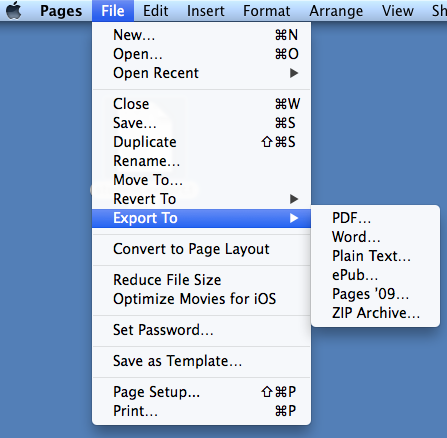
There are three ways to solve this.  First and best option would be to use the File menu and Export the document as a Word document.  It will create a file that ends with the DOCX extension.  With this file, a user should be able to open and manipulate the file you created.

The second option would be to use the same File menu and Export the document as a PDF.  By doing this, it makes an image of what the file would look like which becomes very hard to change.  This is good when you don't want people changing your work.

The final option is to compress or "zip" the file.  Holding Control and clicking on the icon of the file will give you the option to compress the file.  The resulting file is a "zip" file that preserves the structure.  Emailing the "zip" file allows the recipient to open the file if they have the same version of Pages that you created it with or a newer one.


Wednesday, June 11, 2014

Important Summer Updates

FYI- This is a note about some important updates to do before leaving for the summer.  If you have questions, please contact the Tech Office.

Dear MLTI Schools, 

Apple has just released two important updates that impact MacBook Air 13" and 11” models deployed as part of the MLTI solution. Both updates (SMC & EFI) address critical issues, are highly recommended for all MLTI MacBook Air 11” & 13” models, and should be applied prior to re-imaging and/or storing the devices for the summer.

The SMC update addresses an issue which may cause the battery to drain faster than expected when the lid is closed.

The EFI update improves reliability when waking from sleep and when booting while certain USB and Thunderbolt devices are connected. This update also addresses a rare memory issue that may cause the system to randomly reboot, and an issue where the system may not properly sleep the built-in display when an external display is connected while running Windows using Boot Camp.

These updates can be obtained either by clicking the Apple menu and selecting the “Software Update” option, or by opening the Mac App Store and selecting the “Updates” button along the top. These updates must be applied successively, meaning that both can not be applied at the same time. This will result in two "Software Update” requests, and two system reboots in order to properly apply both updates.  The Mac App Store Updates section will show ‘No Updates Available’ when all available updates have been applied.

If you need additional assistance, please call the MLTI AppleCare Help Desk at 1-800-919-2775 pin# 4MLTI.

For more information:
Thank you
The MLTI Team

Wednesday, April 30, 2014

Summer Take Home Privileges

Now that we are beginning to see the end of the school year approaching, the Tech. Department would like to remind MMHS students of the change in laptop procedures for the end of the year.

To encourage proper use and care of laptops, the school committee approved a plan by the student council that would allow students to use their laptops at home over the summer if all of the following criteria were met.

  1. Students who have graduated are not eligible.
  2. Students must not have any violations of the Acceptable Use Policy (AUP) for the year.
  3. The laptops need to be inspected for damage and cleanliness.  Any laptops needing repair would need to be sent out to be fixed.
  4. Students must not have any outstanding repair bills.
  5. Laptops must have all updates applied and be in the best possible working condition.
  6. Only students who have participated in the Laptop Protection Plan will be permitted to do the summer take home.  The same plan will cover the student until the first day of the new school year.  Students will be responsible for maintaining the device over the summer and making sure that it is ready for use on the first day of the new school year.
  7. Students that meet the criteria will have a new form to bring home acknowledging the added responsibility of caring for the laptop over the summer months.  Parents will need to sign off on this and the form returned.
The vast majority of our students have not had any AUP violations so far this year.  Keep it up.  You're almost done the year!

If your laptop needs repairs, get them in to the Tech. Office before the end of the year so they can be fixed so they will meet #3.  Hopefully the majority of our students will qualify for this opportunity.  This can greatly assist students in continuing their learning over the summer months.